 SEO & Accessibility
 AI
AI Localization
 Ecommerce
 Forms
Forms Fields
 Development
 Security
 Templating
 Performance
 Control Panel
 Widgets
 Assets
 Utilities
 Mailer Adapters
 Social Networking
 Integrations
AI Alt Text
🤖 💬 AI Alt Text
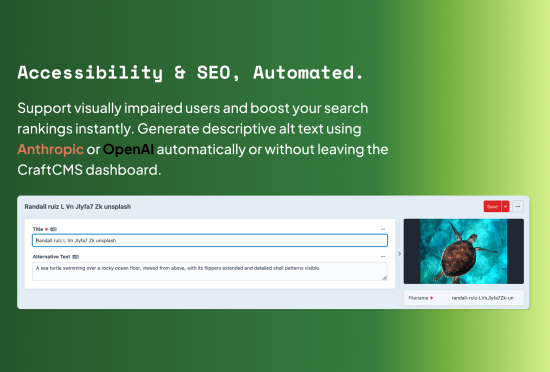
Generate alt text for CraftCMS Asset Images using the Anthropic or OpenAI API.
🚨 NEW Additional AI Provider support for Anthropic is now available.
🚨 NEW Craft 4 support is now available - visit the 4.x branch README for installation and documentation.
Plugin Store | GitHub Repository
🎬 Video walkthrough

📋 Requirements
This plugin requires:
- Craft CMS 5.0.0 or later - running Craft 4? Use the 4.x branch instead
- PHP 8.2 or later
- An Anthropic API key or an OpenAI API key
📥 Installation
You can install this plugin from the Plugin Store or with Composer.
📦 With Composer
Open your terminal and run the following commands:
# tell Composer to load the plugin
composer require heavymetalavo/craft-aialttext
# or
ddev composer require heavymetalavo/craft-aialttext
Then:
# tell Craft to install the plugin
./craft plugin/install ai-alt-text
# or
ddev craft plugin/install ai-alt-text
🤖 Setup API Keys
Anthropic
- Visit https://console.anthropic.com/ and sign up.
- Navigate to Settings → API Keys.
- Create a new API key and save it to an environment variable (
.env). - Ensure you have credits in your account under Billing.
OpenAI
- Visit https://platform.openai.com/ and sign up in the top-right.
- Revisit the API platform home page again
- Click the ⚙️ icon in the top-right
- Left menu > Organization > API keys > + Create new secret key (top-right)
- Create a name and assign to a suitable project
- Permissions > Restricted > set "Model capabilities" to "Write" and "Responses API" to "Write"
- Save API key to an env var, you wont get to see it again!
- Make sure you have a credit balance! Left menu > Organization > Billing, loading $5 is probably going to get you quite far, disabling auto recharge might be safer though that's up to you!
🚀 How to use
- Check the plugin settings are suitable for your project (and your API key is added)
- Ensure your volumes have the native
altfield assigned to the field layout - Ensure your templates are updated to use the
altfield, you could consider a fallbackasset.alt ?: asset.titleif that what was used before - Then generate some AI Alt text by performing one of the following actions:
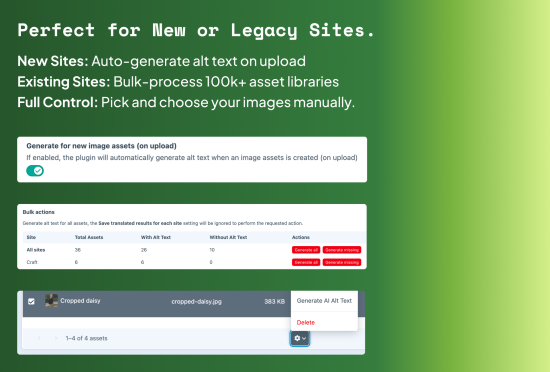
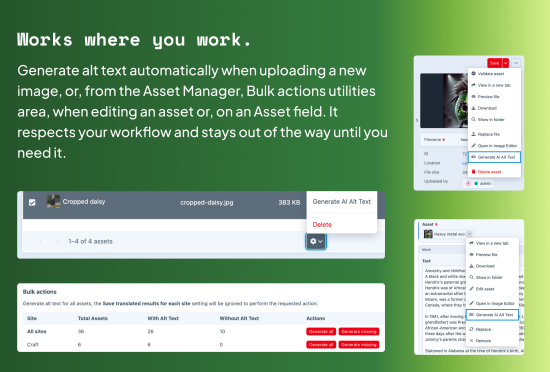
- Triggering a bulk action in the bulk actions table
- For individual or a group of specific assets find them in the Assets manager section clicking the checkbox on a row, clicking the cog icon to reveal the Element actions menu and select Generate AI Alt Text
- When viewing a single asset's page, open the action menu and select Generate AI Alt Text
- Upload a new asset (if the upload setting is enabled)
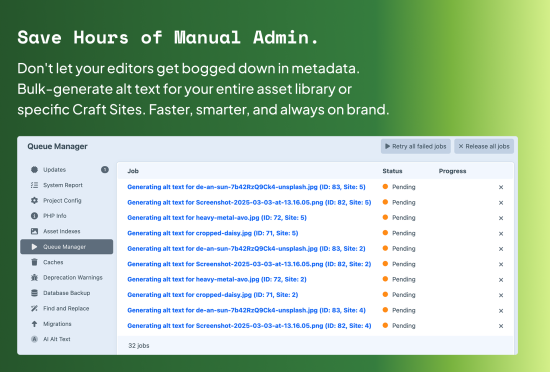
- The plugin will queue jobs to generate alt text for each selected asset


Example twig:
{% set asset = craft.assets.one() %}
<img src="{{ asset.url }}" alt="{{ asset.alt ?: asset.title }}">
🖥️ Console Commands
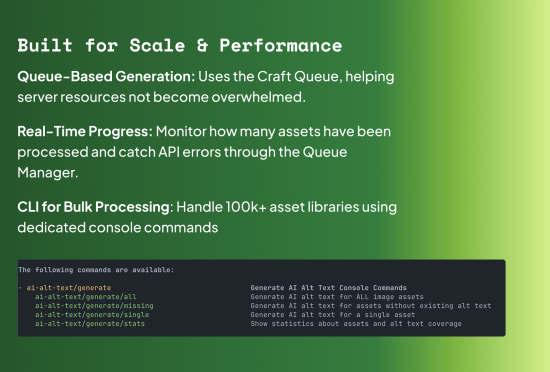
Important: These commands will create queue jobs which when run will generate the alt text. By default, all commands process all sites unless --site-id is specified.
Available Commands
| Command | Description |
|---|---|
ai-alt-text/generate/stats | Show alt text coverage statistics |
ai-alt-text/generate/missing | Queue jobs for assets without alt text (recommended) |
ai-alt-text/generate/all | Queue jobs for ALL assets (⚠️ overwrites existing alt text) |
ai-alt-text/generate/single <id> | Queue job for a specific asset ID (use -s for one site) |
Options
| Option | Alias | Description | Default |
|---|---|---|---|
--site-id=<id> | -s | Process only specific site (if not set, processes all sites) | * |
--batch-size=<n> | -b | Assets per batch (memory efficiency) | 500 |
--verbose | -v | Show detailed progress | false |
--force | -f | Skip confirmations | false |
Examples
# Check coverage across all sites
./craft ai-alt-text/generate/stats

# Queue missing alt text for all sites
./craft ai-alt-text/generate/missing

# Queue for specific site with verbose output
./craft ai-alt-text/generate/missing --site-id=2 --verbose

# Queue for single asset
./craft ai-alt-text/generate/single 123

# Queue for single asset on a specific site
./craft ai-alt-text/generate/single 123 --site-id=2
⚙️ Plugin settings
After installation, configure the plugin at Settings → AI Alt Text:
📊 Settings overview
| Setting | Description |
|---|---|
| AI Provider | Choose between OpenAI or Anthropic. |
| OpenAI/Anthropic API Key | Your provider's API key. |
| Model | The AI model to use (e.g., gpt-5-nano or claude-haiku-4-5). |
| Detail Level | How detailed the image analysis should be (controls resolution/scaling). |
| OpenAI Reasoning Effort | The reasoning effort level for OpenAI reasoning models. |
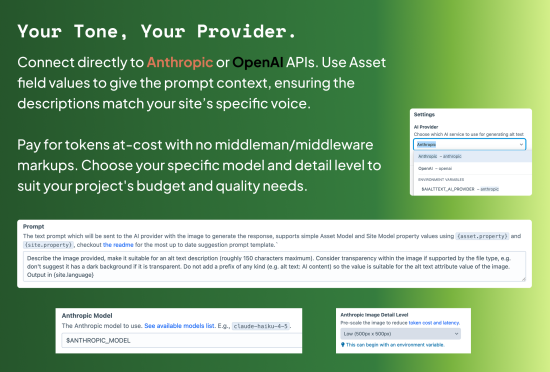
| Prompt | The instructions sent to the AI provider as the system / instruction message (example below). Supports {asset.property} and {site.property} variables, plus {site.languageName} for the language's display name (e.g. English (United Kingdom)). |
| Propagate | Whether the asset should be saved across all of its supported sites, if enabled it could save the same initial alt text value across all sites. |
| Generate for new image assets (on upload or file replacement) | Automatically generate alt text when new assets are created, or when an asset's file is replaced. On replacement, the alt text for the site the replacement was made in is overwritten, since it describes the old image; other sites keep their existing alt text unless Save translated results for each site is enabled. |
| Process SVGs | Attempt to generate alt text for SVG files when they are uploaded or batched processed. |
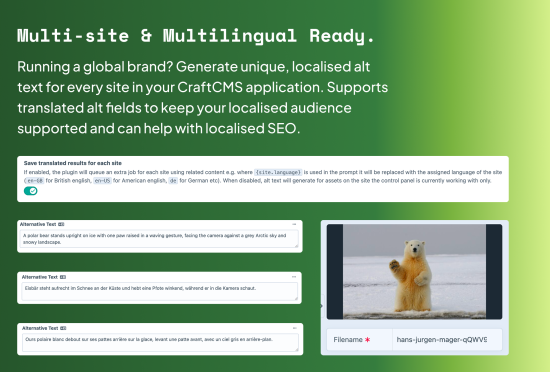
| Save translated results for each site | Save translated results to translatable fields for each site. |
🧠 Model Options
All vision models should work, these small models seem to hit the sweetspot between quality & cost:
claude-haiku-4-5- For Anthropic: "The fastest model with near-frontier intelligence"gpt-5-nano- For OpenAI: "Fastest, most cost-efficient version of GPT-5"
To find out which models are capable of vision, check the models page, click into a model's detail page (e.g., gpt-5-nano) and look for "Input: Text, image" in the features columns at the top.
💬 Default prompt
This is sent to the provider as the system / instruction message (Anthropic system, OpenAI instructions); the image is sent in the user turn with a short trigger. {site.languageName} resolves to the language's display name and {site.language} to its BCP 47 language tag (e.g. en-GB), so the default pairs them - edit the parenthesised format freely.
Describe the image provided (roughly 150 characters). The output MUST be suitable for use directly as an HTML alt attribute value. Consider transparency within the image if supported by the file type, e.g. don't suggest it has a dark background if it is transparent. When describing a person do not assume their gender. Do not add a prefix of any kind (e.g. "#", "alt text:", "An image of", "A photo of"). Do not wrap the output in quotes. Output in the language: {site.languageName} (BCP 47: {site.language})
🔍 Image detail options
OpenAI:
low- Fast, low-cost (512px x 512px) (recommended)high- Standard high-fidelity understandingoriginal- Large, dense, spatially sensitive images (gpt-5.4+)auto- Let the model choose
Anthropic:
low- 500px x 500px (recommended)medium- 1000px x 1000pxhigh- 1568px x 1568px
🧠 OpenAI Reasoning Effort options
Controls how much time the model spends "thinking" before generating a response (only applicable to OpenAI reasoning models like o* (e.g. o1) and gpt-5*).
noneminimallowmediumhighxhigh
For more information, refer to the OpenAI and Anthropic documentation.
🔐 Permissions
Bulk generation is gated by the AI Alt Text Bulk Actions utility permission, which Craft registers automatically for the plugin's utility. Grant it to the relevant user groups under Settings → Users → (group or user) → Permissions → Utilities after installing. Admins always have it. One checkbox covers viewing the utility and running its "Generate all" / "Generate missing" actions.
Generating for a single asset doesn't have its own permission - it's available to anyone who can save the asset in question (for assets uploaded by other users this requires the "Save assets uploaded by other users" volume permission, matching what they could edit manually). Automatic generation on upload or file replacement is controlled by the "Generate for new image assets" setting alone.
🏷️ Field requirements
This plugin requires a native CraftCMS field for alt text with the handle alt to be added to all asset volumes where you want to generate alt text. The plugin will use this field to store the generated alt text.
To add this field:
- Go to Settings → Assets → Volume name → + Add → search for the
altfield and click → save - Scroll to Field Layout section
- Click the
+ Addbutton - Search for the
altfield and click - Save changes to the volume
- Update your templates to use the new
altfield
Provider-Specific Limits
- Automatic Scaling: The plugin automatically detects when an image exceeds provider limits and applies transforms (resizing or quality reduction) before sending the payload.
- Supported file types: Both AI providers support:
png,jpeg,jpg,webp,gif(non-animated) - SVG Support: SVGs are rasterized to PNG (preserving transparency) before being sent to the AI (where transformSvgs is enabled).
- AVIF, HEIC & HEIF Support: These image types are converted to PNG before being sent to an AI provider. This requires an image driver (ImageMagick built with AVIF/HEIF/HEIC support) that can decode them on environments without that support these assets are skipped.
- Animated GIFs: Only the first frame is processed.
- Private Assets: Assets on private volumes without public URLs can be sent as base64 encoded strings. Retrieving an image transform's file contents is not currently supported by CraftCMS. Meaning that for file types not supported by an AI provider (e.g. an SVG files) it is not possible to generate alt text for these private assets.
- Servd/Cloud: Support for specialized asset bundles (like Servd) depends on the environment's ability to handle raster transforms.
- Consider AI Provider level boundaries: e.g. OpenAI: "No watermarks or logos - No NSFW content - Clear enough for a human to understand"
Oddities, Logic & Limitations
- The OpenAI API has image input requirements which over the lifespan of this plugin have changed without notice, the requirements are not always enforced, e.g. base64 encoded images above the required image dimensions have been accepted by the API.
- Craft CMS uses the Imagine library for image processing, which can only transform select image formats. Support for these formats may vary depending on what ImageMagick drivers are available in your environment. If a source image is in a supported format, the plugin will generate a transform in one of the supported file types to send to the OpenAI API.
- Where an unsupported file type is requested the plugin will attempt an image transform to a jpg to be sent instead
- The plugin checks a file's mimetype to see if it's valid, or if it needs a format conversion before sending to the API
- If an asset's dimensions are larger than the dimensions required by the API an image transform is sent instead
- If an asset has no URL (private) and requires a transform (e.g. if the original asset is an unsupported mime type, or, the dimensions are too large), Craft will be unable to retrieve the transform's file contents for base64 encoding. In that case the plugin will not fall back to sending the original source file unless its MIME type is natively accepted by the AI provider.
- Where an alternative image transformer is used, e.g. when an application is hosted on Servd and assets are processed through their asset platform this may not support svg -> raster transforms
🛠️ Troubleshooting
- If the plugin returns errors about API authentication, verify your API key.
- For "bad request" errors, ensure your selected model supports vision capabilities.
- Alt text generation is processed through Craft's queue system for bulk operations, so check the queue if generation seems to be taking a long time.
- Any errors should be logged, check your queue.log files!
- Check the asset has a title! If somehow an asset exists without one craft will not be able to resave it.
⚠️ Disclaimer
We've taken some steps to try prevent unexpected costs with default plugin settings (e.g. detail: low and model: gpt-5-nano) though we take no responsibility for excessive API token usage that may result from mistakes, bugs, or security vulnerabilities within this plugin so use at your own risk.
If you are concerned about unexpected charges we recommend:
- Set up rate limits and spending caps at the API account level in your OpenAI account settings
- Start with smaller batches when using bulk generation until you're comfortable with the costs
- Consider using the default
lowsetting, which significantly reduces token usage - Monitor your OpenAI API usage regularly
📈 Example usage statistics
When testing with OpenAI using the default settings (gpt-4o-mini model, low detail level):
| Metric | Value |
|---|---|
| March budget | $0.03 / $120 |
| Total tokens used | 163,713 |
| Total requests | 29 |
🙋 Support
If you encounter any issues or have questions, please submit them on GitHub.
Credits
The eye icon used in this project is from SVG Repo and is available under the CC0 1.0 Universal (Public Domain) license.
Standard
Plus $9/year after one year.
To install this plugin, copy the command above to your terminal.